
Word Index
Searches the pre-indexed list of words in the corpus. This is usually the fastest choice when you know the wordform you want.
Use Simple Text Search to search the TLG corpus for a single word, a lemma, a text string, or a phrase. You may search the full corpus or limit the search to authors and works previously selected in the Canon.
Searches the pre-indexed list of words in the corpus. This is usually the fastest choice when you know the wordform you want.
Searches for a dictionary headword and retrieves the wordforms associated with that lemma.
Searches the text files character by character for a string or phrase. It is more flexible, but usually slower.
Open Text Search from the site menu. The page initially displays a Search button.
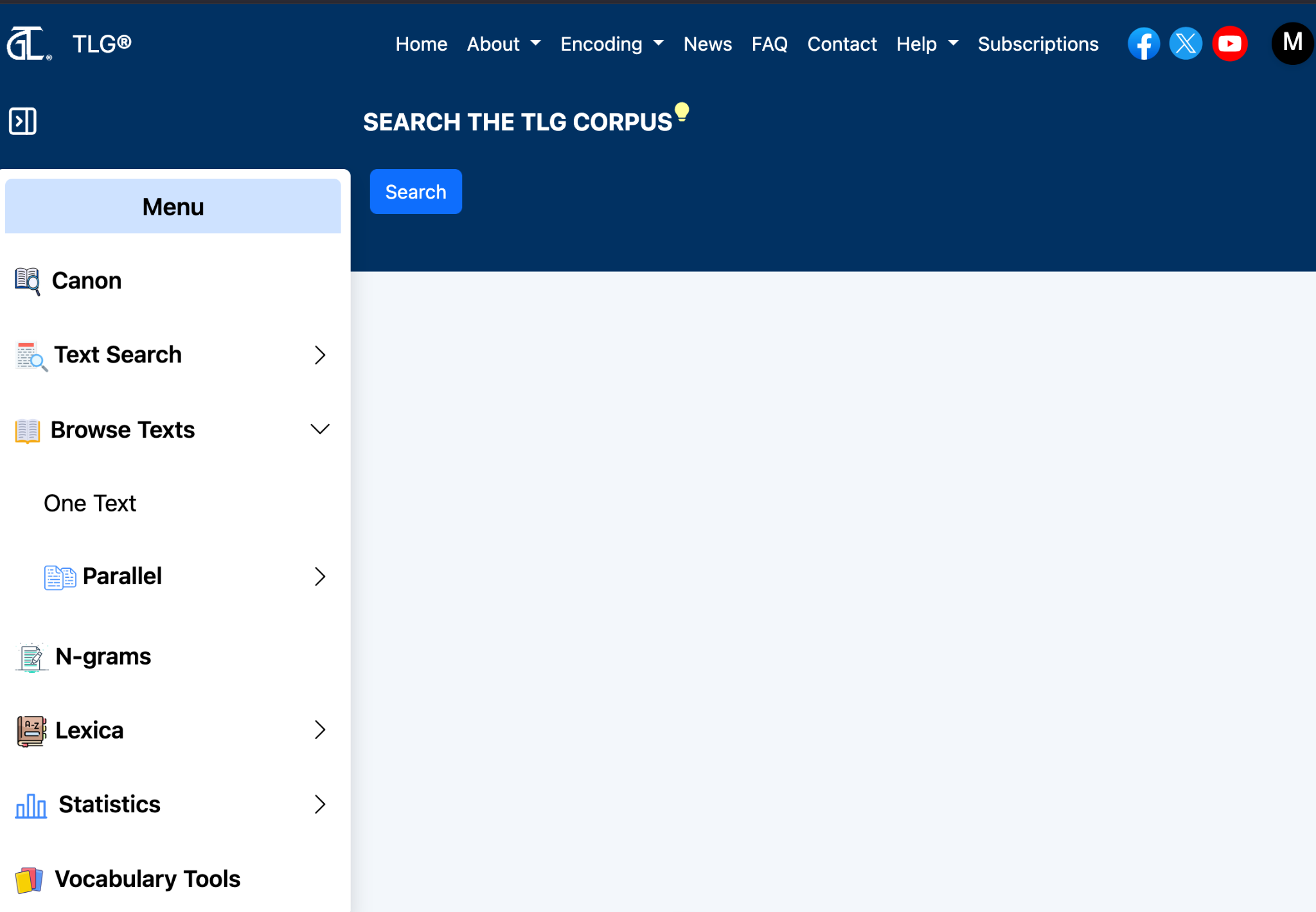
Select Search. The Simple, Proximity, and Advanced Proximity tabs appear. Simple is selected by default.
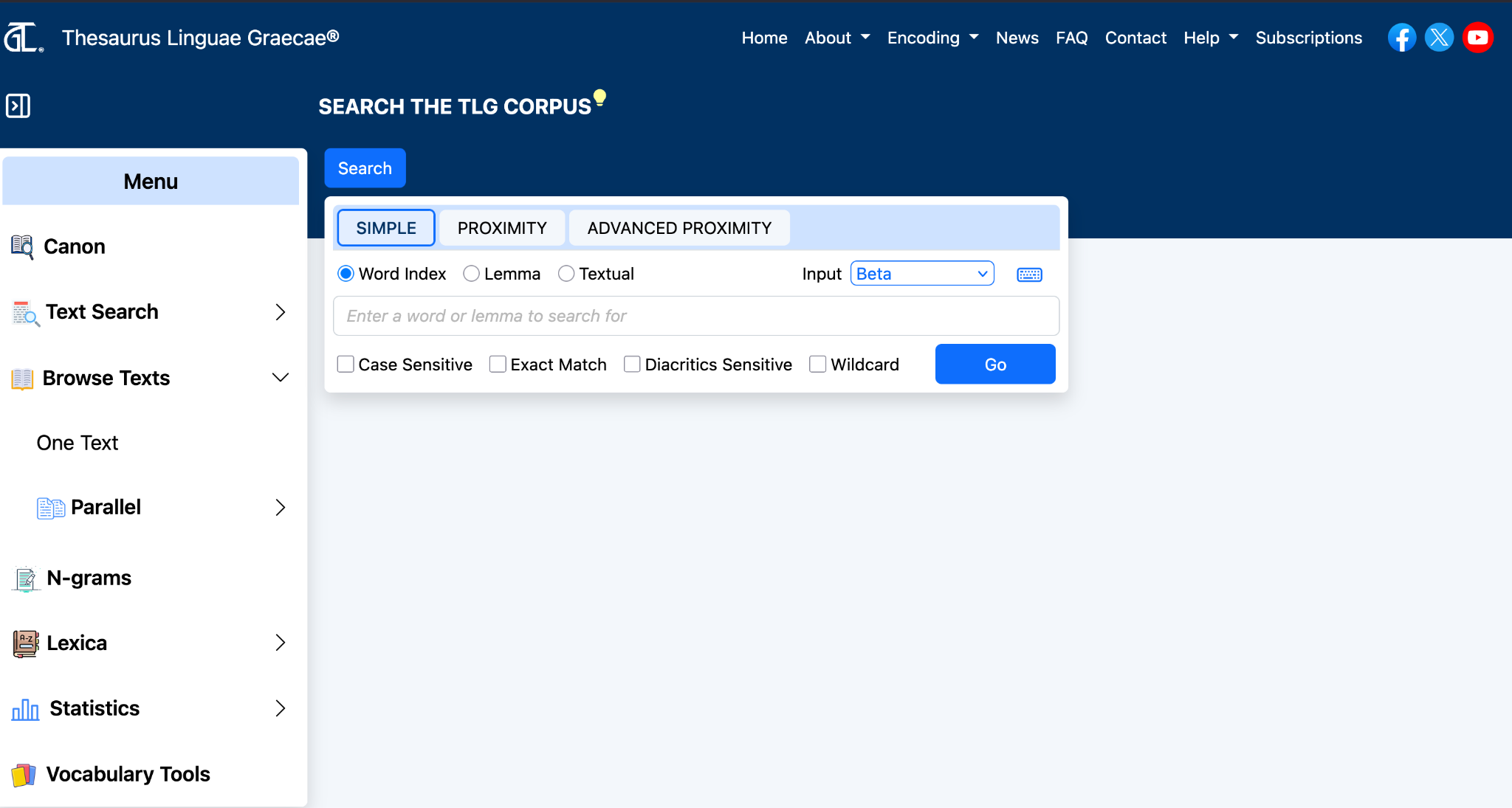
| Type | Use it when | Behavior |
|---|---|---|
| Word Index | You know the exact or approximate wordform. | Searches the indexed vocabulary of the corpus. Accents and punctuation are normally ignored. |
| Lemma | You want all forms associated with a dictionary headword. | Searches the lemma database. If a lemma is absent, use Word Index or Textual Search. |
| Textual | You need to search for a string, phrase, punctuation, or material not represented in the indexes. | Searches the text files directly and may be slower. |
Choose an input method, enter the word or lemma, and select Go.
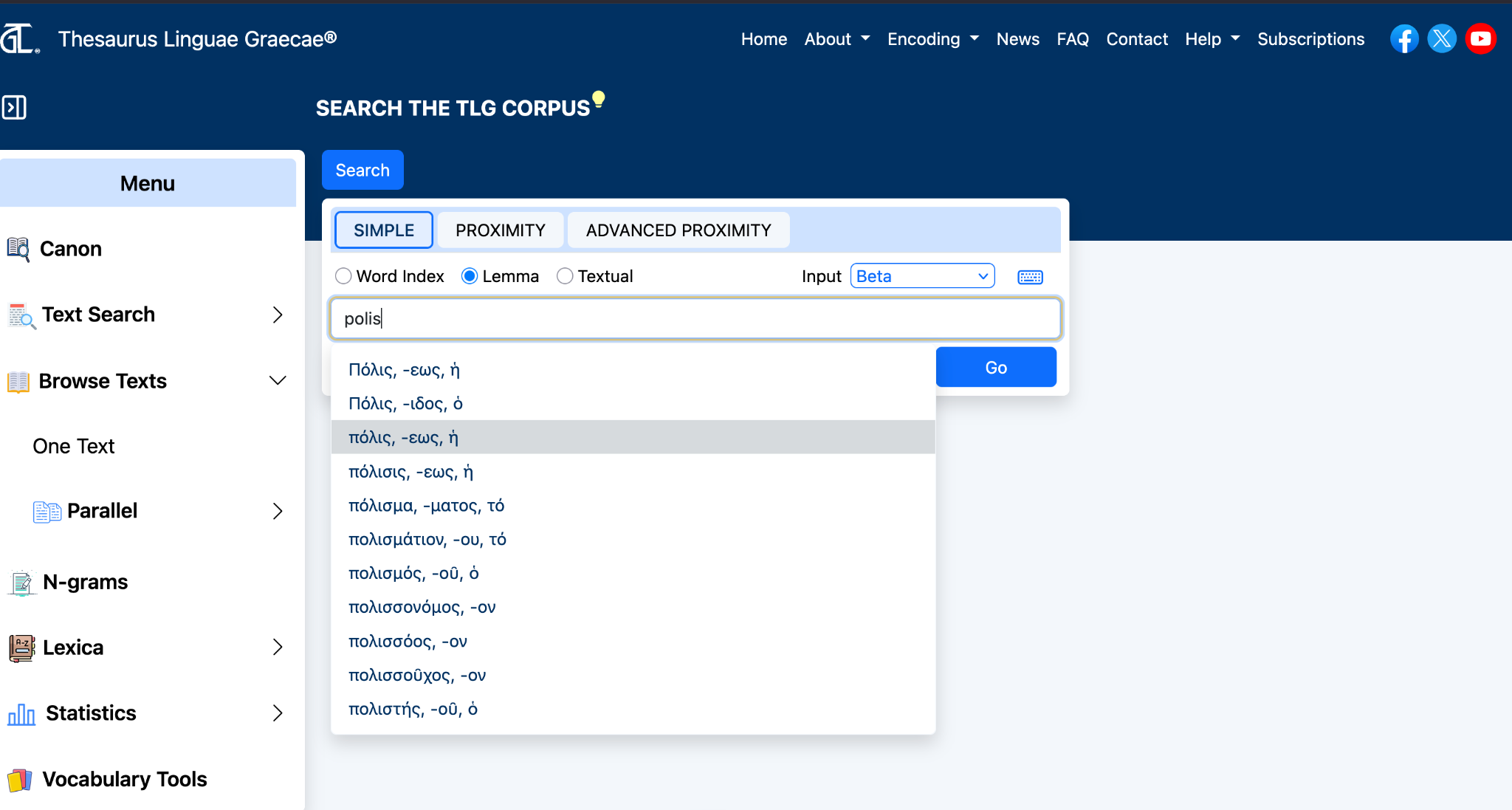
When Lemma is selected, matching lemmata appear as you type. Select the intended lemma before running the search.
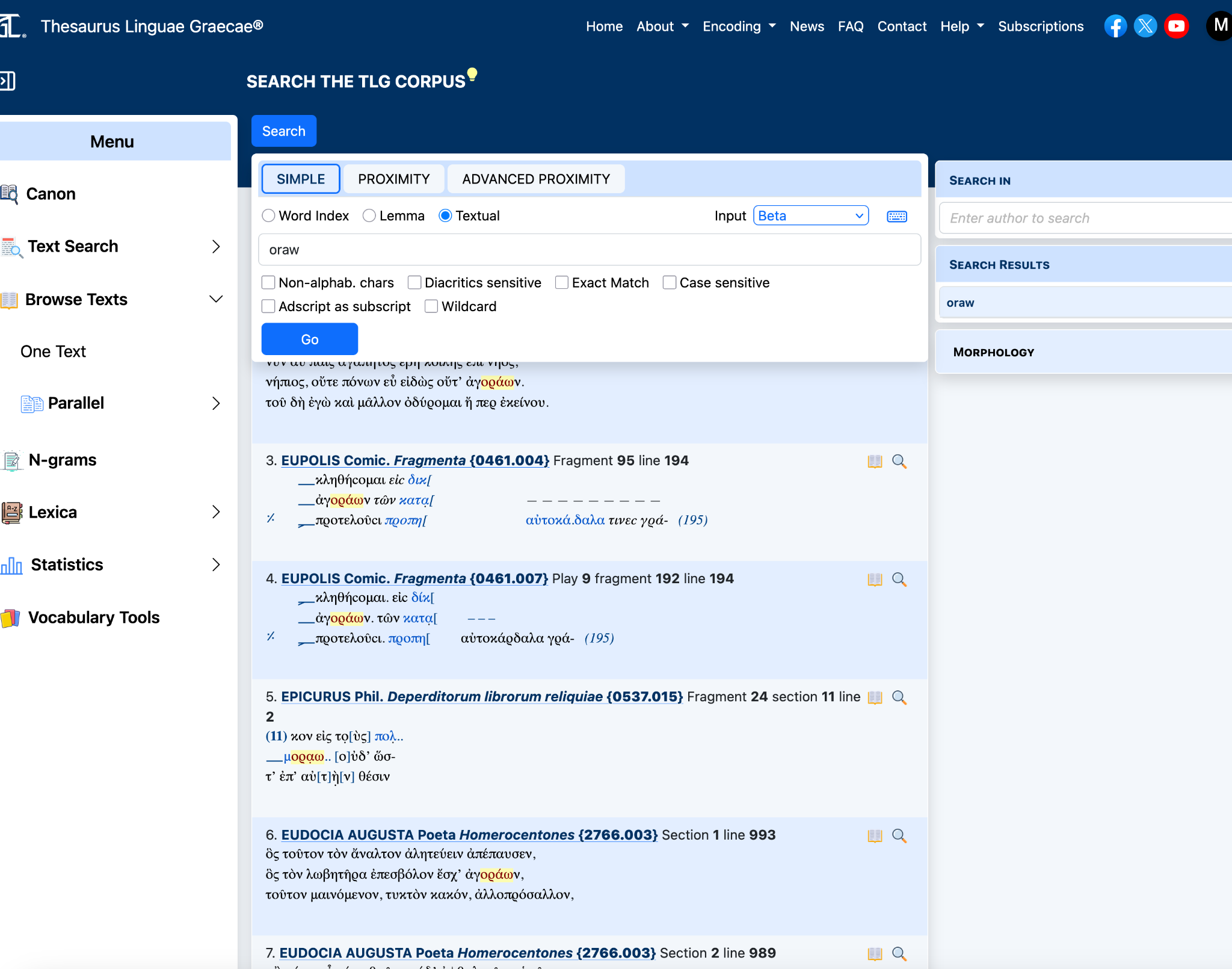
| Option | What it does |
|---|---|
| Case Sensitive | Distinguishes uppercase and lowercase characters. |
| Exact Match | Searches for the exact string entered. Available for Word Index and Textual Search. |
| Diacritics Sensitive | Requires Greek diacritics to match. |
| Wildcard | Interprets supported wildcard patterns. Available for Word Index and Textual Search. |
| Non-alphabetic characters | Allows searches containing Beta Code escapes and other non-alphabetic characters. |
| Adscript as subscript | Treats unambiguous iota adscript forms like iota subscript forms. |
The Input menu supports Greek, Beta Code, and transliteration. A virtual Greek keyboard is also available.
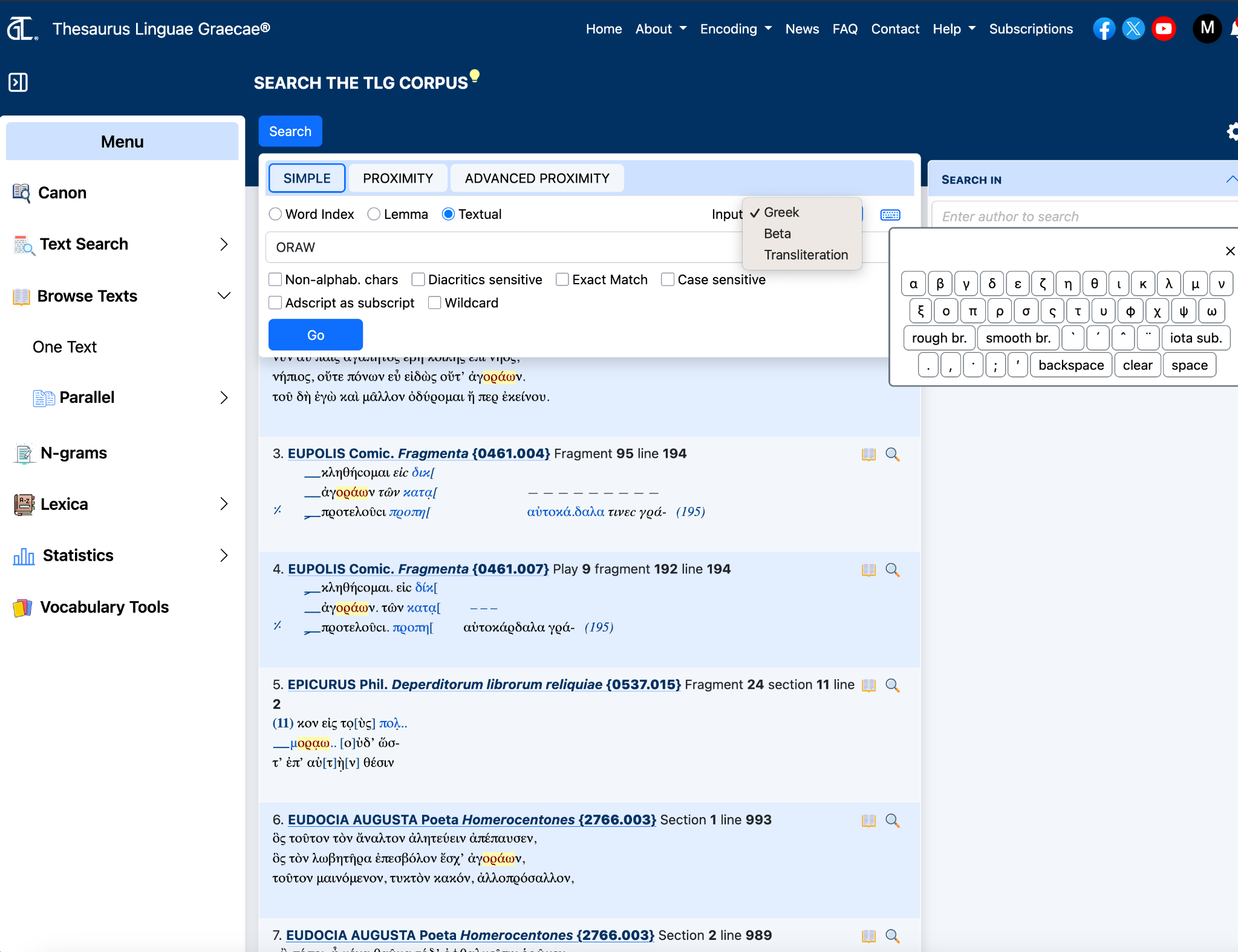
Results appear in the center of the page, with the matching form highlighted in context. The sidebar may show result counts, matching forms, author filtering, and morphology information.

The action icons allow users to save, export, or print results. The booklet and magnifying-glass controls next to individual results provide bibliographic and text-level access.
Wildcard searching is available in Word Index and Textual Search. Enable Wildcard before using these patterns.
| Purpose | Pattern |
|---|---|
| Find a string anywhere | ANA |
| Find a string at the beginning | ^ANA |
| Find a string at the end | ANA$ |
| Find an exact indexed word | ^ANA$ |
| Match A or E | AN[AE]DU |
| Match either complete alternative | ANADU|ANEDU |
| Match any character | . |
| Match an optional group | (AN)?EDU |
| Match a digit | [0-9] |
| Match one or more digits | [0-9]+ |
Special Beta Code characters such as ( ) / \ | + should be escaped with a backslash when intended literally.
A phrase may be entered directly in Simple Search. Word Index is efficient for indexed phrases. Textual Search is useful when exact spacing and a longer sequence must be preserved.