Parallel Browsing displays two passages side by side. The new interface offers three modes: Browse Two Texts, Highlight similarities, and Compare Editions.
1. Choose a Parallel Browsing mode
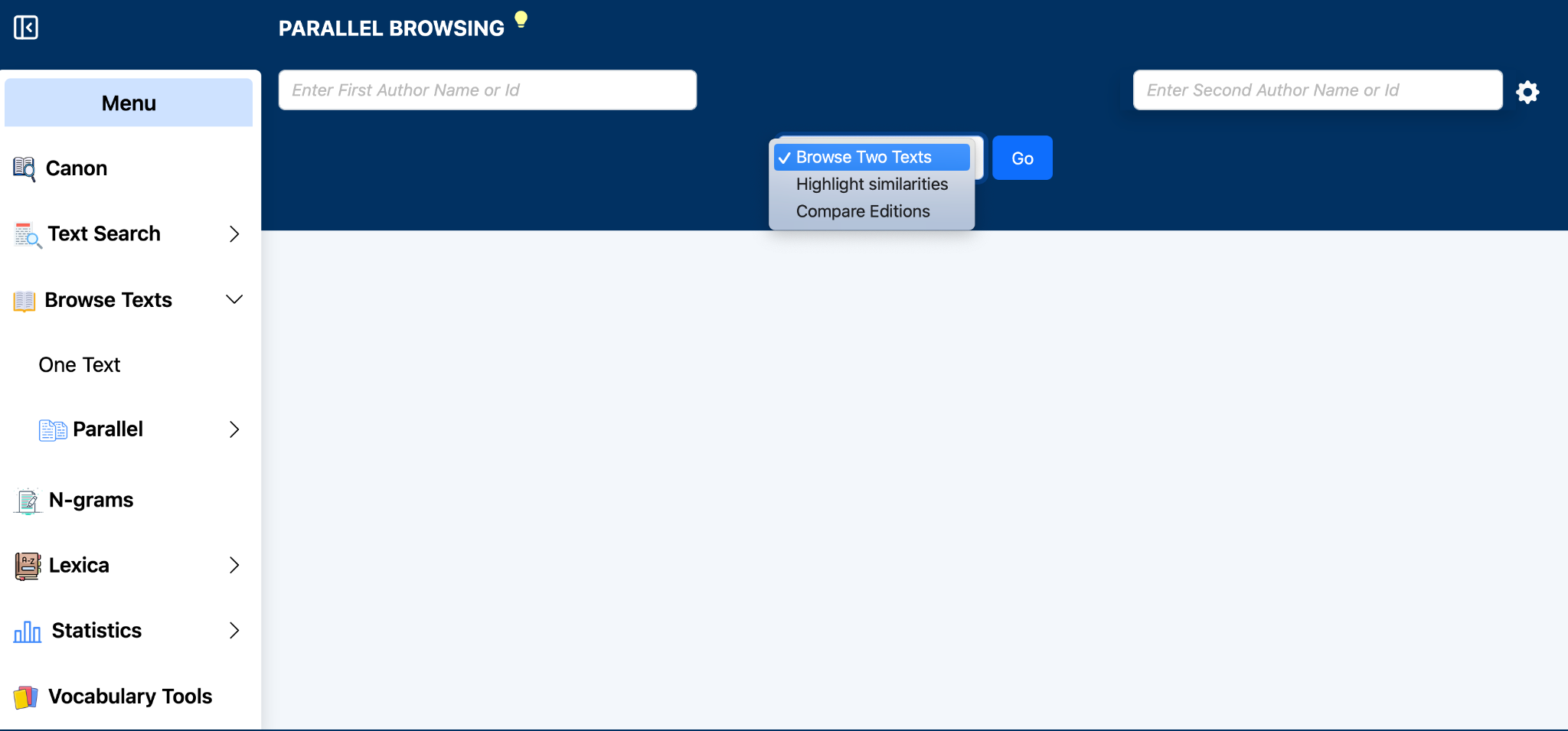
Open Browse Texts → Parallel. Enter the first and second author or TLG ID in the fields at the top of the page. Use the center menu to select the type of comparison, then choose Go.
Parallel Browsing landing page: select the two texts and choose one of the three comparison modes.
Browse Two Texts
Display any two selected texts side by side and navigate each text independently.
Highlight similarities
Compare two texts while TLG identifies and highlights similar expressions.
Compare Editions
Compare two editions of the same work and identify differences between them.
2. Browse Two Texts
This option allows you to read any two TLG texts side by side. Each pane retains the normal Browser controls, so you can move directly to a location in either text and use Text Structure when available.
Browse Two Texts: Homer’s Iliad and the Scholia in Iliadem displayed side by side.
Select the first author and work in the left field.
Select the second author and work in the right field.
Choose Browse Two Texts and click Go.
Use the citation controls above each text to navigate to the desired passage.
Independent navigation: The two panes have their own citation controls. In the example, the Iliad is navigated by book and line, while the scholia use book, verse, and line of scholion.
3. Highlight similarities
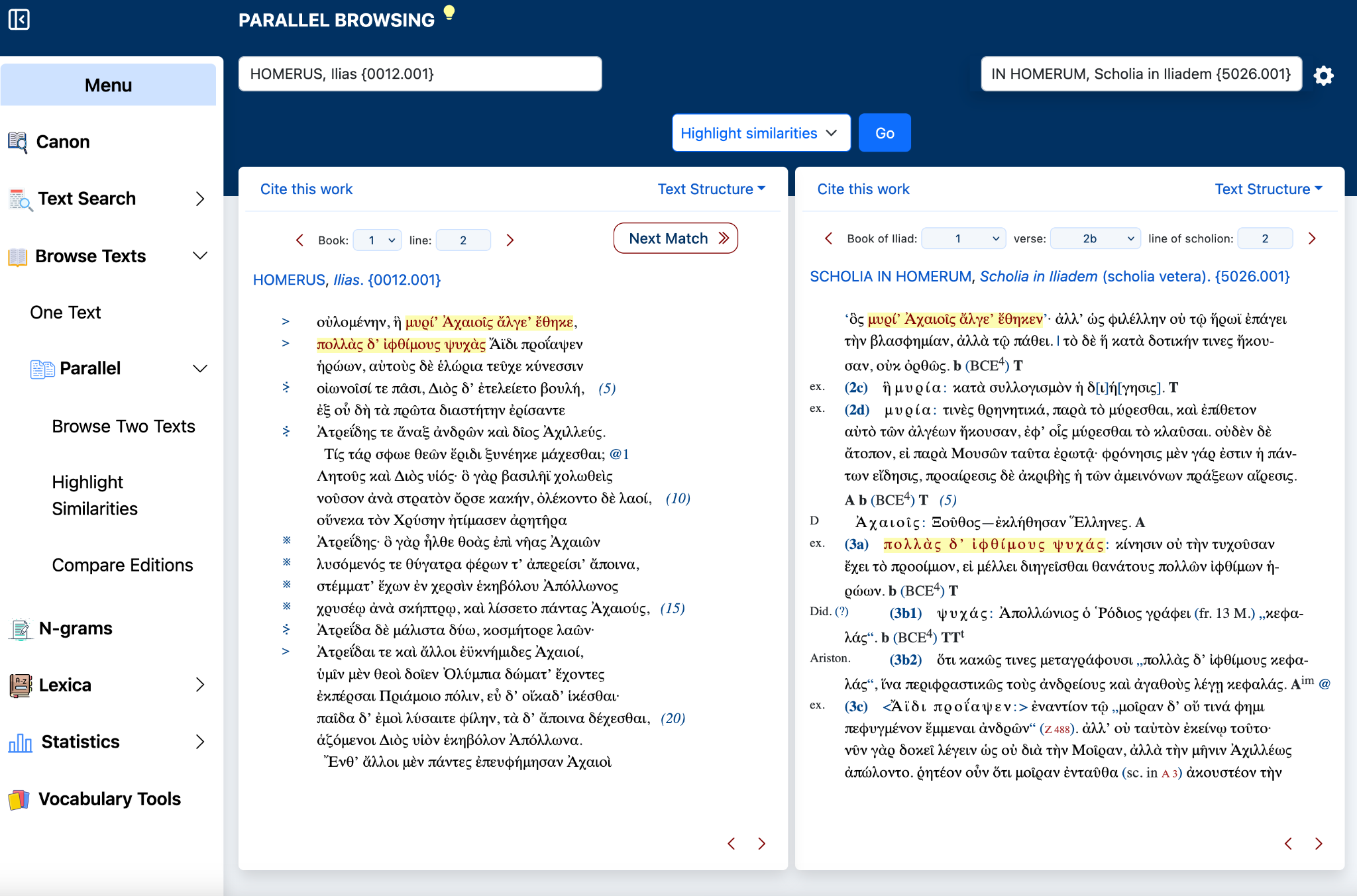
Select Highlight similarities to compare two texts and locate similar expressions. Matching language is highlighted in both panes, allowing the passages to be examined in context.
Highlight similarities: corresponding expressions are highlighted in the two texts.
Select the two texts you want to compare.
Choose Highlight similarities and click Go.
Review the highlighted expressions in both text panes.
Use Next Match to move to the next identified similarity.
How this relates to N-grams: The previous TLG help describes Highlight Similarities as an expanded version of the N-grams feature. It is intended for comparison of similar wording across two selected texts.
4. Compare Editions
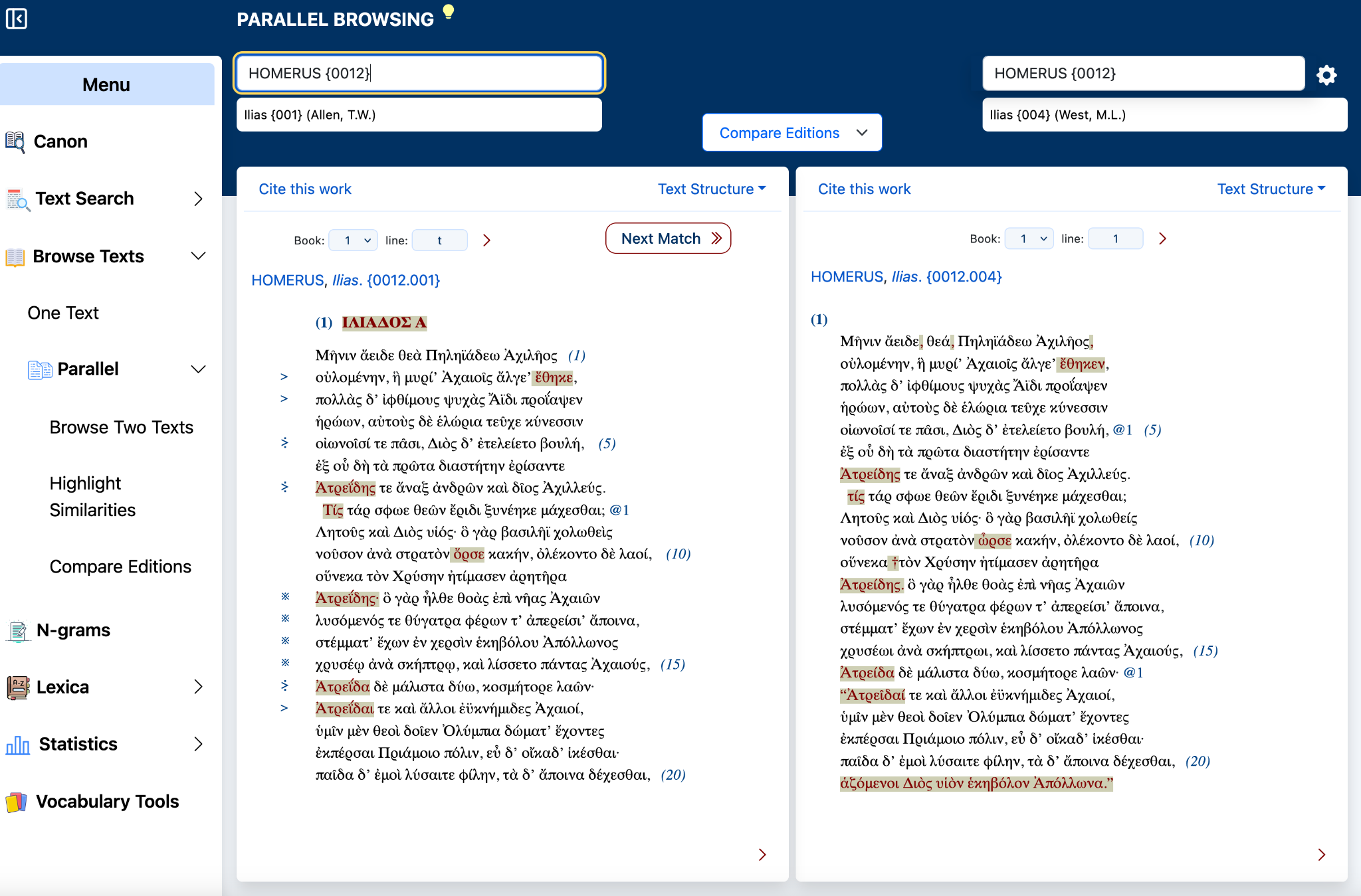
Use Compare Editions when the TLG contains more than one edition of the same text. The two editions are displayed side by side and differences are highlighted for rapid comparison.
Compare Editions: two editions of Homer’s Iliad are displayed side by side and variant readings are highlighted.
Choose Compare Editions.
Enter or select the author in the author field.
Select the edition for each side from the available work/edition choices.
Click Go to display the editions side by side.
Use Next Match to move to the next highlighted difference.
Availability: Compare Editions applies only to works for which the TLG contains multiple editions.
5. Features shared by the three modes
Navigation and citation
Each text appears in its own pane.
Use the citation controls above a text to move to another location.
Text Structure provides structured navigation when available.
Cite this work provides citation information for the displayed work.
Comparison controls
The comparison mode can be selected from the menu centered above the texts.
Next Match is available in the similarity and edition-comparison views shown here.
Highlighted text identifies the language relevant to the selected comparison.
6. Quick reference
Browse Two Texts
Best for reading and navigating two passages side by side without an automated comparison.
Highlight similarities
Use when you want TLG to locate similar expressions in two selected texts.
Compare Editions
Use when two TLG editions of the same work are available and you want to identify textual differences.