The Browser allows you to read a selected TLG text and, from the same screen, consult its structure, translations and resources, morphological and lexical information, n-grams, and statistics.
1. Open and navigate a text
In the previous Browser, users selected an author by name or TLG number using autocomplete and then selected a work from the author's works. The new Browser retains the selected work at the top of the screen and places navigation and analysis tools around the text.
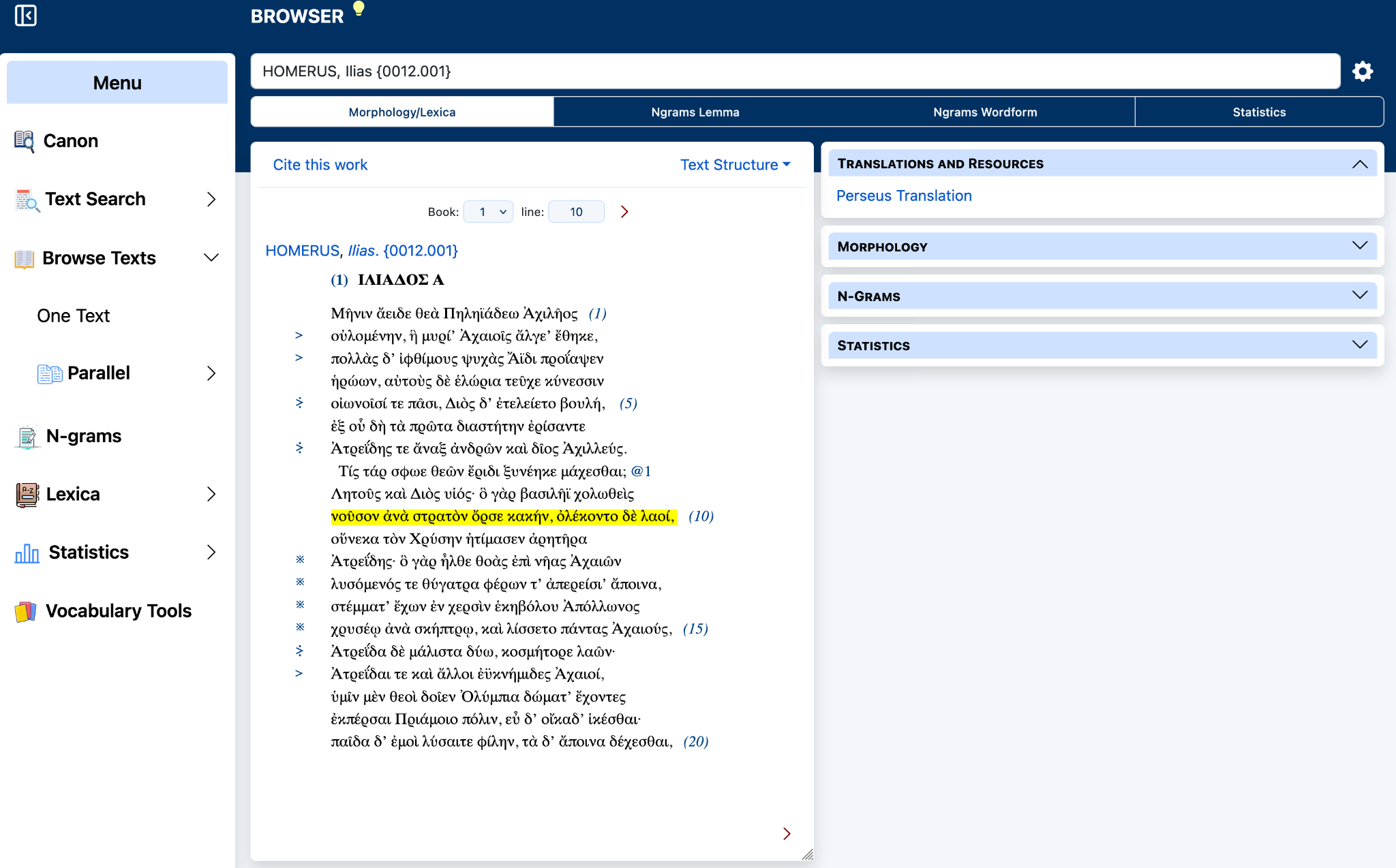
Browser overview: Homer, Iliad, with the text in the center and expandable resources on the right.
Text navigation
The current author and work appear in the field at the top.
Use the Book and line controls above the text to move directly to a location.
Use the arrow at the lower right of the text panel to continue forward.
Text Structure provides an outline for navigating texts whose citation structure supports it.
Additional browser tools
Cite this work provides citation information for the displayed work.
Translations and Resources displays known online resources, such as the Perseus translation shown here.
The top tabs activate Morphology/Lexica, Ngrams Lemma, Ngrams Wordform, or Statistics.
Text Structure: The earlier Browser guide notes that no text structure is provided when the citation is simply “line.”
2. Morphology and Lexica
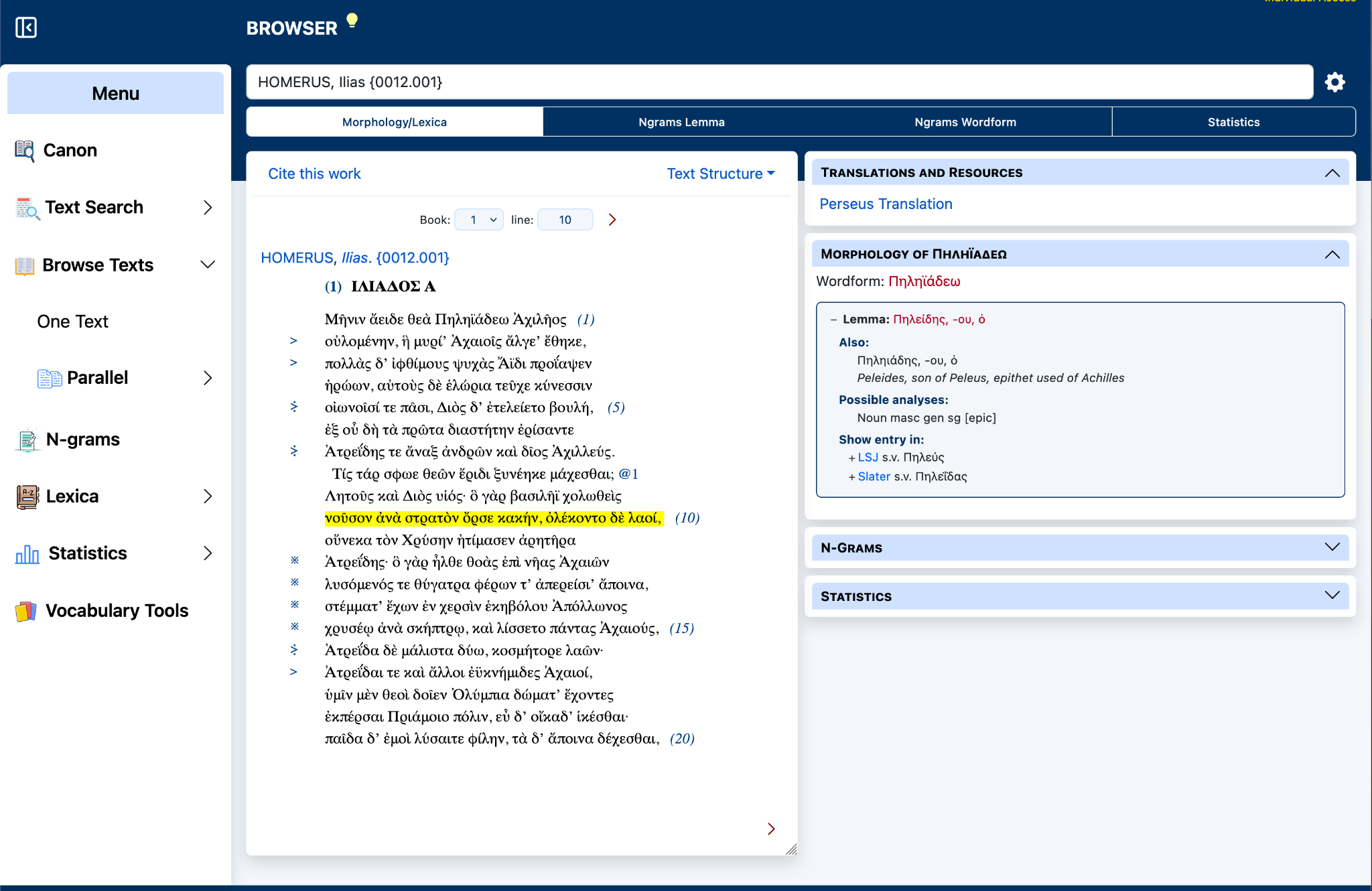
Select Morphology/Lexica, then click a word in the Greek text. Morphological information for the selected wordform appears in the right-hand panel.
Morphology/Lexica: clicking a wordform opens its analysis and available dictionary links.
Activate Morphology/Lexica at the top of the Browser.
Click the word you want to examine in the text.
Review the wordform, lemma, and possible analyses in the Morphology panel.
Use the listed lexicon links to open the corresponding dictionary entry.
Tip: Lexicon availability depends on the selected lemma. The screenshot shows links to LSJ and Slater for the selected form.
3. N-grams
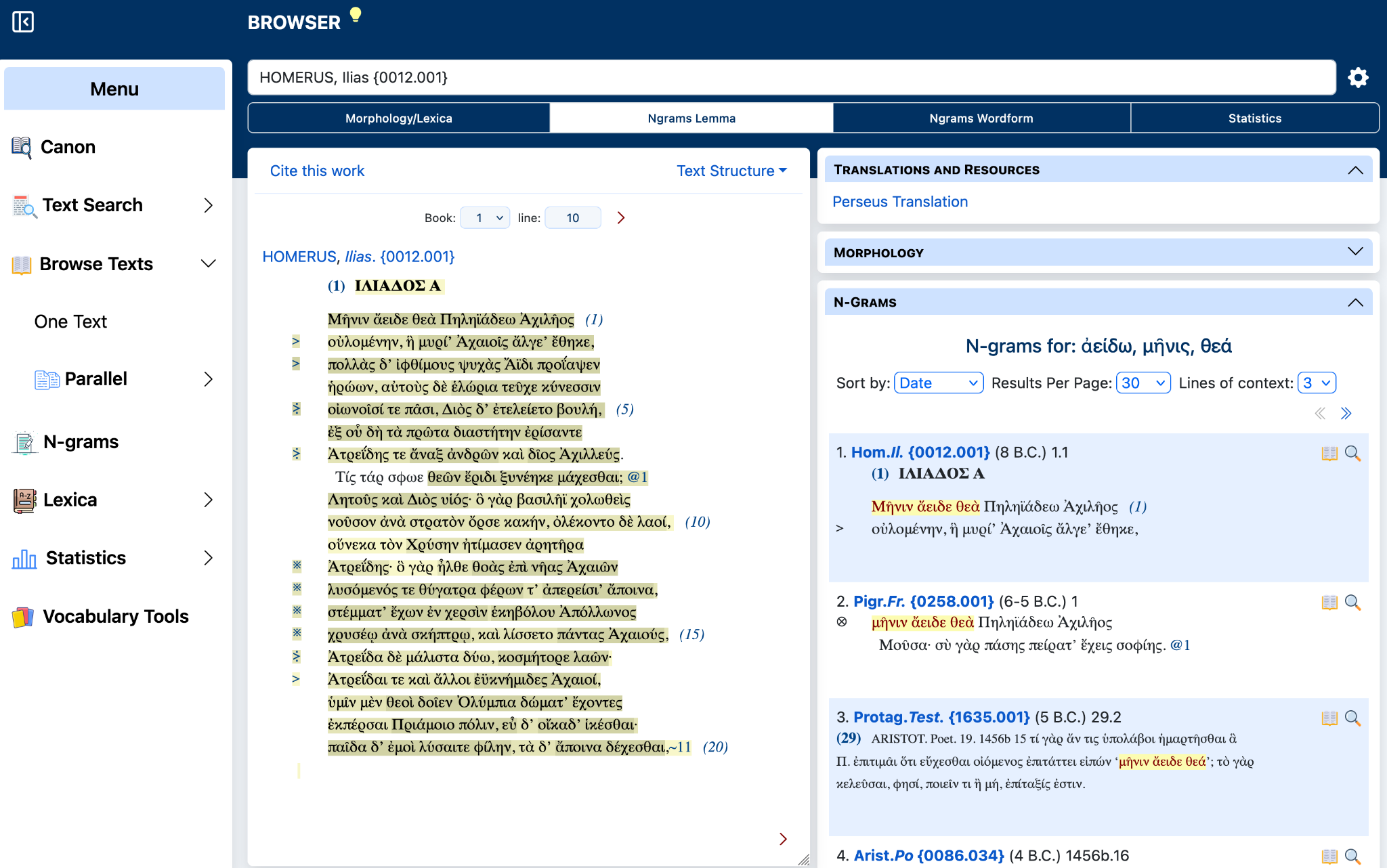
The Browser can display n-gram information based on either lemmas or exact wordforms. Choose Ngrams Lemma to detect combinations at the lemma level, or Ngrams Wordform for exact wordform combinations.
N-grams: the selected sequence is highlighted in the text and matching passages are displayed on the right.
Lemma n-grams
Lemma-based n-grams can identify combinations even when the inflected forms vary. This corresponds to the earlier guide's distinction between lemma searching and exact wordform matching.
Wordform n-grams
Wordform n-grams search for exact forms. Use this option when the precise wording, rather than the underlying lemmas, is significant.
The results panel allows you to sort results, set the number of results per page, and choose the number of lines of context. Matching words are highlighted within each cited passage.
From the previous help guide: TLG searches for combinations of three words (trigrams); when no trigrams are found, bigrams may be shown if available.
4. Statistics
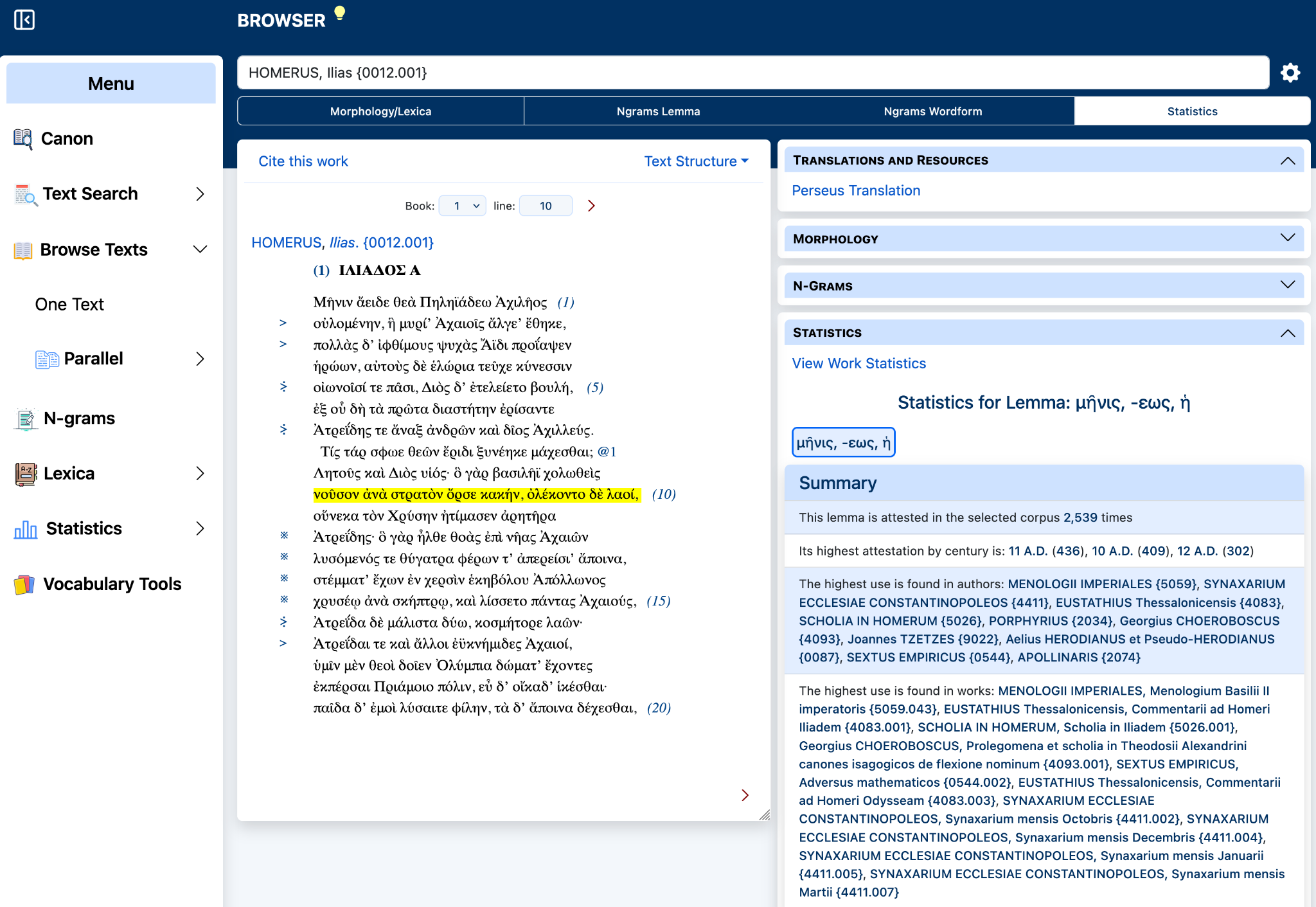
Select Statistics and click a word in the text to display statistical information for its lemma. The right-hand panel summarizes its distribution in the selected corpus.
Statistics: the right panel summarizes attestations of the selected lemma across the corpus.
The summary may include the total number of attestations, centuries with the highest attestation, and authors and works in which the lemma occurs most frequently. To obtain statistics for the entire work rather than a selected lemma, choose View Work Statistics.
5. Quick reference
Center text panel
Read the selected work.
Navigate by citation.
Open Text Structure.
Cite the work.
Click words when Morphology/Lexica or Statistics is active.
Right-hand panel
Translations and Resources
Morphology
N-grams
Statistics
The sections expand and collapse so that the relevant information can remain visible alongside the text.